 ORBIT, your AI partner
Talk to ORBIT
Brief ORBIT in plain words, attach files, answer its questions and follow its task list while it works.
What you will do
Give ORBIT a piece of work the way you would brief a trusted partner, and follow it until it is done.
Steps
Start a conversation
Press New session at the top of the sidebar, or Ctrl+N (⌘+N on a Mac).
Type in the box at the bottom and press Enter. Describe the result you want in your own words, for example: “Text Sarah Chen to confirm Saturday’s showing and add a note to her record.” There are no commands to learn.

Type here. Approvals and Thinking are in the + menu on the left. Attach a file or a photo
Press + at the left of the box and choose Files… or Images…, or drag a file onto the conversation. ORBIT uses what you attach for that request, for example a document to summarise or a photo to describe.
Answer ORBIT's questions
When ORBIT needs a detail only you know, it asks in the conversation. Pick an answer, or choose Other (type your answer), then press Continue. Skip moves on without answering.
While ORBIT waits for you, the conversation shows Waiting for your answer in the sidebar.
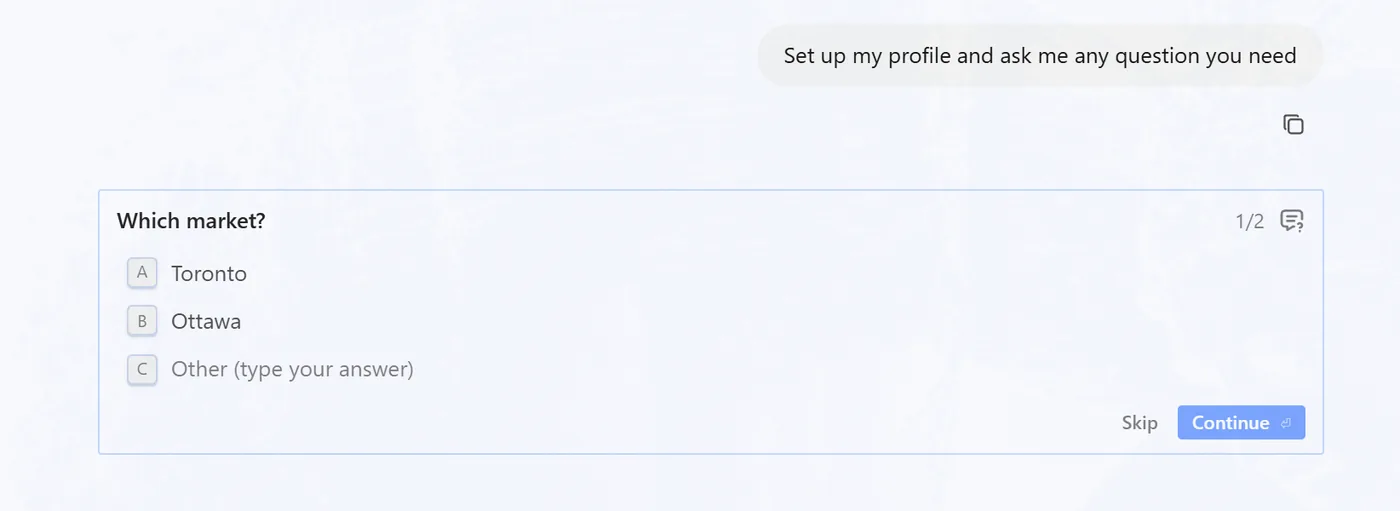
ORBIT asks a question before it goes on. Follow the work
While ORBIT works, the conversation shows how long it has been working. For longer jobs ORBIT keeps a Tasks list above the box and ticks each step off as it finishes.
You can keep typing. Send a message while ORBIT is busy and it waits in line (Queued) until ORBIT is ready for it.
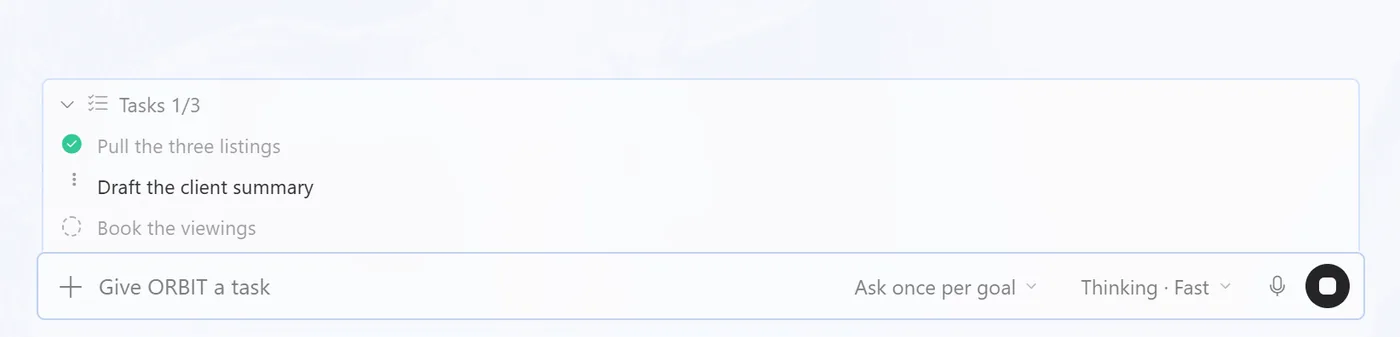
ORBIT's task list while it works. Stop ORBIT
To stop the current work, press the square Stop button at the right of the box, or press Esc.
Find and organise conversations
Every conversation stays under Conversations in the sidebar. Use the search icon (Ctrl+Shift+F) to find one. The … menu on a conversation lets you Pin, Rename, Archive or Delete it.
Say it to ORBIT
You can also just ask. For example:
- “Who needs my attention first today?”
- “Prepare me for tomorrow's appointments.”
- “Summarise everything about the Patel family before I call them.”
Tips
- One message can hold a whole goal: “Add Omar Haddad as a seller lead, text him to book a call this week, and create a task for me to follow up Friday.” ORBIT works out the steps.
- Name people the way they appear in your CRM. If two records match, ORBIT asks which one you mean.
- ORBIT remembers how you like to work. See Teach ORBIT how you work.
Questions
Do I need to learn commands?
No. Write the way you would to a colleague. ORBIT picks the right tools for the job.
What is the microphone button?
It turns your speech into text in the message box so you can check it before sending. If it shows Voice transcription is not available yet, type your message instead.
Where do I see what ORBIT did while I was away?
In Feeds: one post per client, newest first. Anything that waits for your OK is in the Action Center.
Does chatting with ORBIT use up my plan?
No. Questions and conversation are free. Usage counts only the tasks ORBIT carries out for you, once each. See Settings, plan and billing.
Something not covered here? Ask ORBIT, or write to [email protected]. All guides