 ORBIT, your AI partner
The Action Center
Answer what waits for your OK, and send or edit the replies ORBIT and your AI Employees prepared.
What you will do
Clear the items that need you in a minute or two, and keep up with ORBIT's updates.
Steps
Open the Action Center
Press Action Center in the sidebar. The number next to it is how many items wait for you.
Everything is listed under Waiting for you, newest first. When nothing needs you it says Nothing needs you. ORBIT is handling everything.
Read a card
Each card shows the client (click the name to open their record), what happened, what ORBIT asks you, and, when ORBIT prepared one, ORBIT's suggested reply.
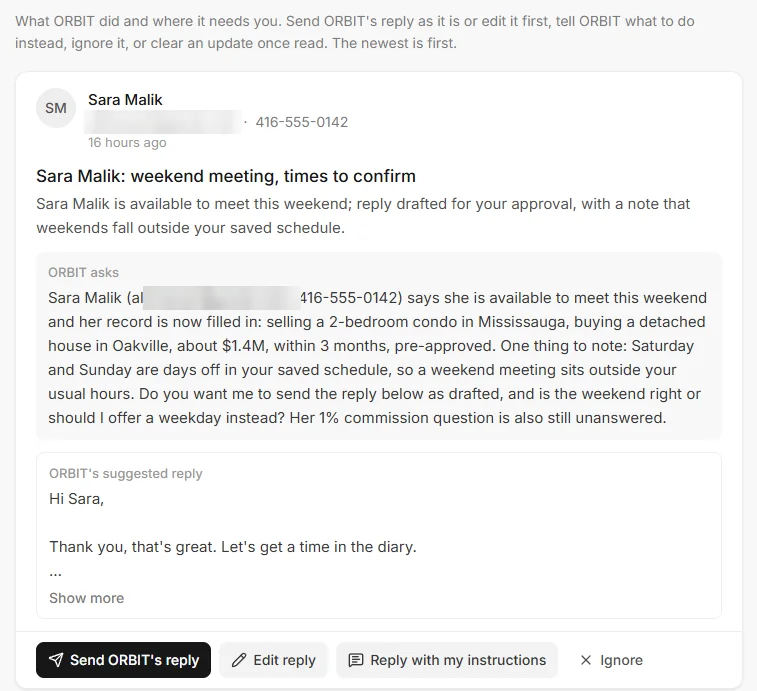
A card waiting in the Action Center. Contact details are blurred. Answer it
Send ORBIT's reply sends the prepared reply as it is, after you confirm with Yes, send.
Edit reply lets you change the text first. The client gets exactly what you leave, signature included. Then press Send edited reply.
Reply with my instructions tells ORBIT what to do or say instead. ORBIT acts on exactly your words. Press Send to ORBIT.
Ignore drops the item.
Clear updates
Some cards are updates, for example Call answered by ORBIT, Call made by ORBIT or Update from ORBIT. Use Open client to see the record, then Got it to clear the card.
See finished work
Finished work is in Feeds: one post per client with everything ORBIT and your AI Employees did, newest first.
Tips
- Open the Action Center from a notification and it jumps straight to that card.
- In Auto, ORBIT still asks before deleting or paying, so look in once or twice a day.
Questions
Why did ORBIT ask me instead of replying to the client?
Either the matter is sensitive (price, offers, legal or contract questions), or ORBIT is in Approval mode: what ORBIT and your team start on their own, such as a reply to a client, waits for you here. In Auto they also act on their own and tell you what they did. Change it in Agent tools & settings → Operating settings → Operating mode.
A card I opened from a link is gone.
A card leaves the list once its action is done. If the item was already handled, you see That item is no longer waiting for you.
Where are completed tasks?
In Feeds, one post per client.
Something not covered here? Ask ORBIT, or write to [email protected]. All guides