 ORBIT, your AI partner
Notifications
Choose which ORBIT events alert you, and get browser alerts while Tanero is open in the background.
What you will do
Hear about what matters, and nothing else.
Steps
The bell
The bell at the bottom of the sidebar shows your unread notifications. Click it to open the list, and click a notification to go straight to it, for example to its Action Center card.
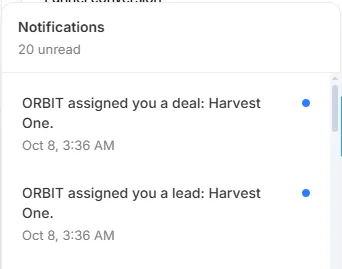
The notifications panel. Choose what alerts you
Open Agent tools & settings → Notifications. Enable notifications switches them all on or off. Then choose: ORBIT needs your OK, ORBIT has a question, Work completed, Work failed, Background work completed, Account and credits, Apps and tools.
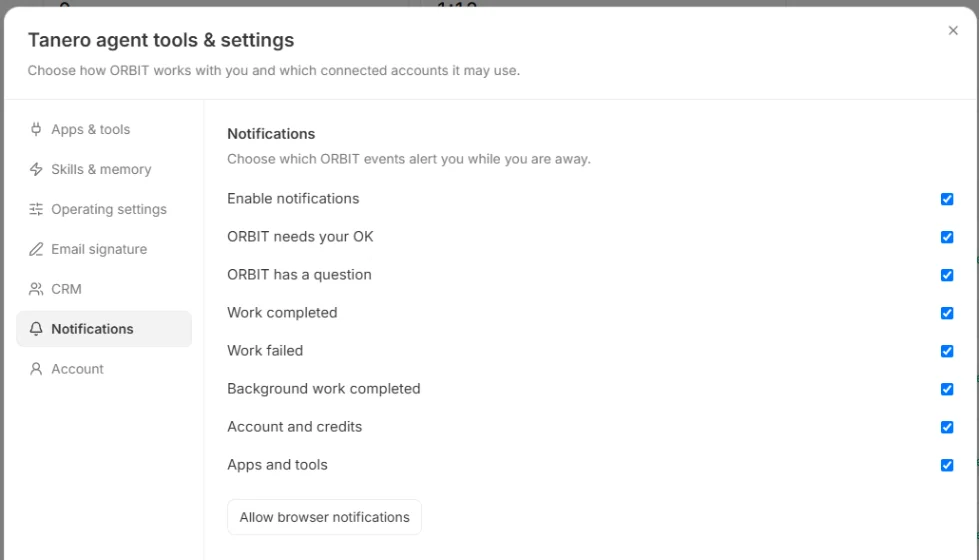
Agent tools & settings → Notifications. Browser alerts
Press Allow browser notifications and accept in your browser. Alerts appear while a Tanero tab is open and you are working in another tab or window.
If you see Browser notifications are blocked, allow them for Tanero in your browser's settings.
Say it to ORBIT
You can also just ask. For example:
- “Turn off Work completed notifications.”
- “Turn all notifications back on.”
Tips
- Keep ORBIT needs your OK and ORBIT has a question on, so ORBIT never waits long for you.
Questions
Do I get alerts when Tanero is closed?
Browser alerts need an open Tanero tab. Everything still waits for you in the bell and the Action Center.
Can I get notifications by email or text?
These settings control the bell and browser alerts.
Something not covered here? Ask ORBIT, or write to [email protected]. All guides