 ORBIT, your AI partner
Connect your apps
Give ORBIT access to the accounts you choose: email, calendars, documents, social pages and more.
What you will do
Connect the accounts ORBIT should work with, and only those.
Steps
Open Apps & tools
Open Agent tools & settings → Apps & tools. Search apps, or filter by Connected, Featured or a category.
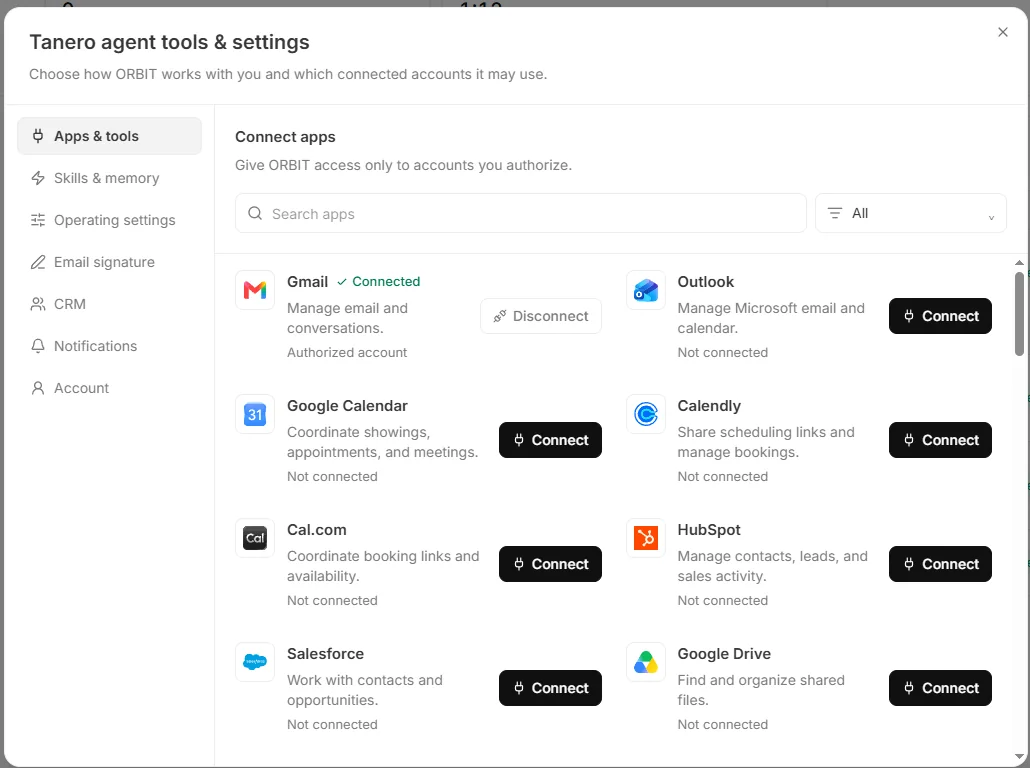
Agent tools & settings → Apps & tools. Connect an app
Press Connect on the app and sign in with that service to allow access. Back in Tanero, reopen Apps & tools: the card shows Connected and the account.
What ORBIT does with them
Gmail and Outlook: send and read email for you. Google Calendar and Outlook: check when you are busy and add appointments. Calendly and Cal.com: see your busy times. Facebook Pages, Instagram and LinkedIn: publish or schedule posts.
For other connected apps, tell ORBIT what you need and it uses the app for you.
Post to social media
“Post the Maple Crescent page to Facebook and LinkedIn tomorrow at 9:00.” ORBIT prepares the post with its image (designed from the listing's own photo when you gave none) and puts it in your Action Center, shown exactly as it will look. Press Publish (or Schedule) there and ORBIT posts it; edit the caption first or ask ORBIT to change it if you like.
Editing a published Facebook or LinkedIn post republishes it, so its likes and comments are lost. A published Instagram post cannot be edited.
Disconnect
Press Disconnect on the app. ORBIT can no longer use that account.
Tips
- Give ORBIT access only to accounts you want it to use.
Questions
Which apps can I connect?
Email and calendars, CRMs, e-signature, documents and storage, spreadsheets, forms, team chat, marketing, social publishing, video meetings, payments and accounting, tasks and notes. Apps & tools shows the apps available to you.
Does disconnecting delete anything in the app?
No. Disconnecting only removes ORBIT's access. Your data stays with that service.
Something not covered here? Ask ORBIT, or write to [email protected]. All guides