 ORBIT, your AI partner
Settings, plan and billing
Where every setting lives, how usage works, and how to change your plan, buy call minutes or cancel.
What you will do
Find any setting in seconds and stay in control of your plan and costs.
Steps
Agent tools & settings
Press Agent tools & settings in the sidebar: Apps & tools (connected accounts), Skills & memory, Operating settings (operating mode, work schedule, business rules and instructions, personal preferences), Email signature, CRM (pipeline stages, fields, views, automations), Notifications and Account (your Tanero number, who answers your calls, deleting your account).
Your profile
Account menu (bottom of the sidebar) → Profile: your contact details, the values your email signature uses, and your Account handle.
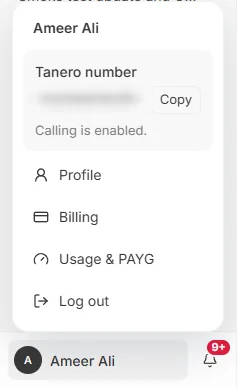
The account menu. The number is blurred. Your plan and invoices
Account menu → Billing: your current plan, payment summary and Billing History, with a PDF or receipt for each payment. Manage billing opens the secure billing portal to update your card and see invoices.
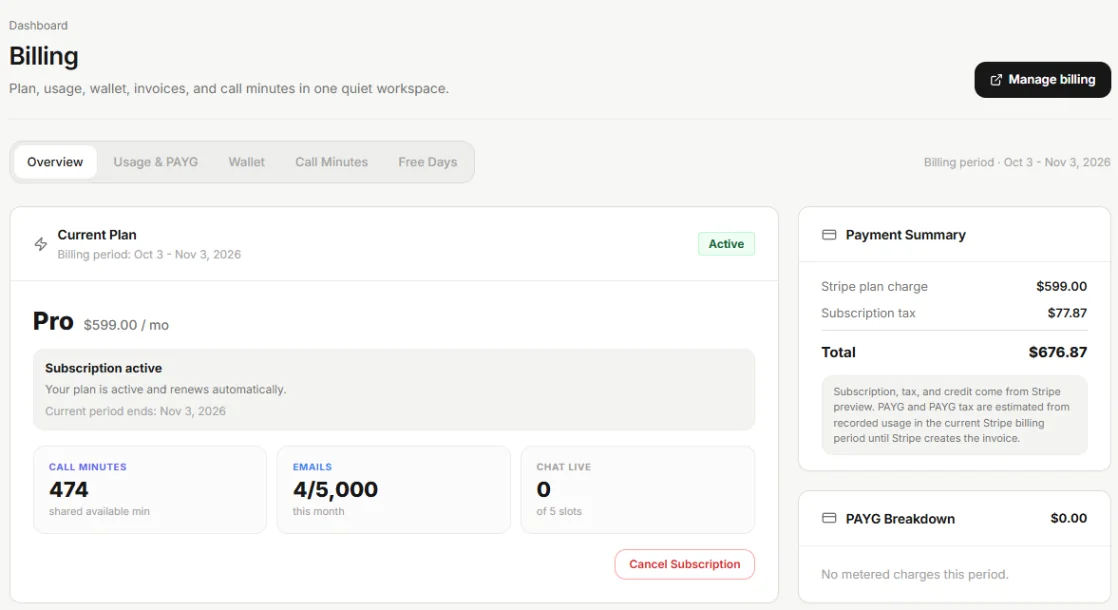
Billing. Your usage
Account menu → Usage & PAYG shows this month's usage: ORBIT AI usage as a share of your plan, website chat visitors, email sends, SMS, SEO updates and document storage.
Only tasks ORBIT carries out count, once each. Chatting with ORBIT, asking questions and opening the CRM, calendar or Action Center are free.
Pay-As-You-Go is off by default. Turn it on for an item to keep going past your plan's limit.
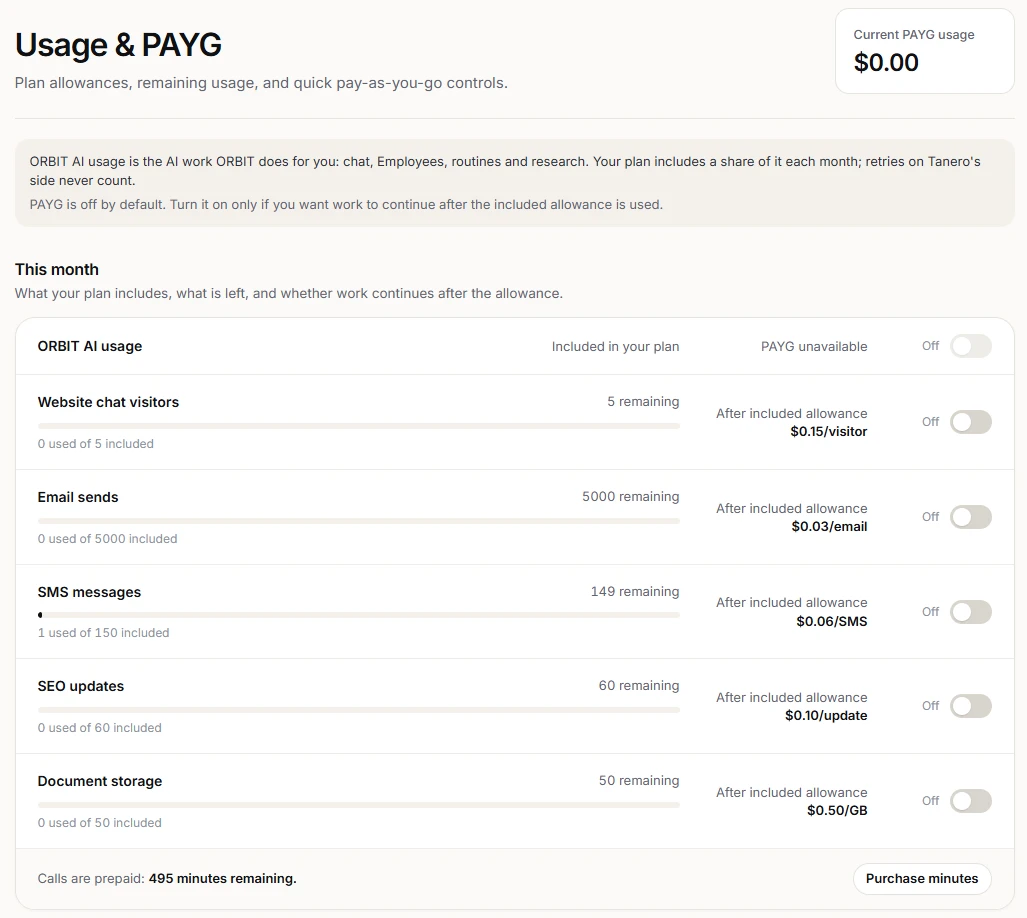
Usage & PAYG. Call minutes
ORBIT calls and Dialer calls use prepaid call minutes. Buy them with Purchase minutes on the usage page, or Top up in the Dialer. Minutes never create Pay-As-You-Go charges.
Change or cancel your plan
To change plans, open the plan page from Billing; it is titled Manage your plan.
Cancel Subscription stops access immediately; if you come back later, your plan starts again from the new payment date. Cancelling deletes your data, so download anything you want to keep first.
Tips
- See the current plan and everything it includes on the Pricing page.
Questions
Is there a setup fee or a contract?
No setup fee and no contract. You can cancel anytime.
What happens to my data when I cancel?
Cancelling deletes your data: ORBIT's memory and conversations, your CRM records, call recordings, files, website and pages. See Delete your account and data.
Why is calling locked?
Calling needs a paid plan and a dedicated Tanero number.
Something not covered here? Ask ORBIT, or write to [email protected]. All guides