 ORBIT, your AI partner
Notes, tasks and the client timeline
Keep notes on each client, plan tasks with due dates, and see every call, text, email and appointment on one timeline.
What you will do
Have everything about a client in one place and never lose track of the next step.
Steps
Add a note
Open the record, go to the Notes tab and add a title and the note. Or tell ORBIT: “Note on Sarah Chen: wants a south-facing unit, flexible on parking.”
CRM → Notes lists every note. Group them by time or by client.
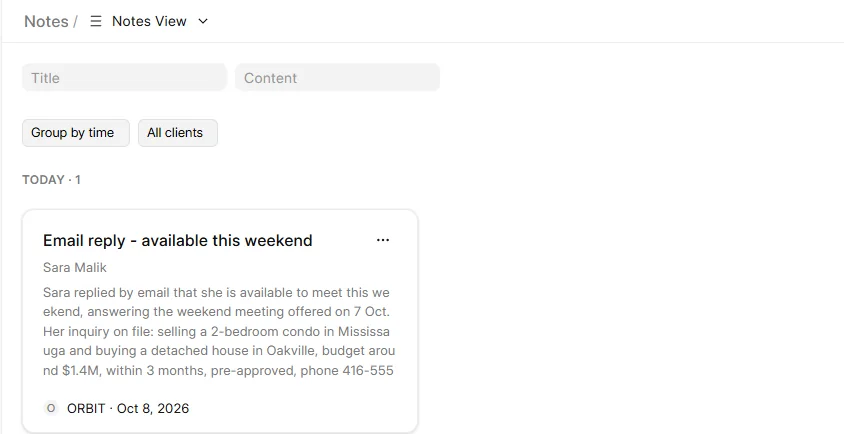
CRM → Notes. Add a task
On the record's Tasks tab, or in CRM → Tasks, create a task with a title, a description, a status, a priority and a due date.
Status: Backlog, Todo, In Progress, Done or Canceled. Priority: Low, Medium or High.

CRM → Tasks. Names are blurred. Let ORBIT handle tasks
ORBIT creates, edits, completes and deletes tasks: “Create a task to send the Patels the condo documents, due Friday.” “Mark the inspection task for Omar Haddad done.”
Appointments appear too
Appointments in your Tanero calendar also show on the client's record as tasks. The calendar stays the place that decides the time.
Read the timeline
The record's Activity tab shows stage changes, notes, tasks, emails, calls and texts in order. Calls show a Summary button for the summary and transcript, and a recording you can play.
Say it to ORBIT
You can also just ask. For example:
- “What did I last discuss with the Patels?”
- “Show my overdue tasks.”
- “Add a note to Omar Haddad: prefers calls after 6 pm.”
Tips
- Ask ORBIT for a client briefing before a call: it reads the record, notes, messages, appointments and documents together.
Questions
Can ORBIT assign a task to someone else?
No. You are the only user of your CRM, so every task is yours.
A task I asked ORBIT to delete shows as Canceled.
When the CRM cannot delete a task, ORBIT sets it to Canceled instead.
Can I reply to an email from the record?
Emails to clients go out through ORBIT, from your own Gmail or Outlook. Ask ORBIT to reply. See Email from your own mailbox.
Something not covered here? Ask ORBIT, or write to [email protected]. All guides