 ORBIT, your AI partner
Leads and clients in your CRM
Open your CRM, find anyone, add a new person and turn a lead into a client.
What you will do
Know where every lead and client lives, add people, and turn a lead into a client.
Before you start
- Your CRM opens inside Tanero. If it says Your CRM is still being prepared. Try again in a minute., it is finishing its setup.
Steps
Open the CRM
In the sidebar, hover or click CRM and pick a list: Leads, Deals, Contacts, Notes, Tasks, Call Logs, Commissions or Pending commissions. Overview opens your CRM dashboard.
Leads and deals
A lead is someone who is not your client yet. A deal is a client you work with: buying, selling, renting or leasing. One person can have more than one deal, for example a purchase and a sale.
Find someone
Lists show Client Name, Status, Mobile No., Email, Intent, Budget, Next Task Due and more. Switch Leads or Deals to a board to see everyone by stage, and use the filters to narrow a list.

The Leads list. Contact details are blurred. Add a person
Press Create at the top of Leads or Deals. Fill in the name and contact details and the Real Estate block: Intent, Property Type, Pre-Approved, Budget Min and Max, Bedrooms, Bathrooms, Timeline and Preferred Areas.
Or ask ORBIT, which first checks that nobody in your CRM has the same email or phone.
Open a record
Click a name to open the record. The side panel holds sections such as Details, Real Estate, Property, Client, Groups and Contact preferences. The tabs show the activity timeline, emails, calls, notes and tasks.
Summary shows what ORBIT knows: its profile note, the last interaction and the next task. Call opens the Dialer with the number filled in.
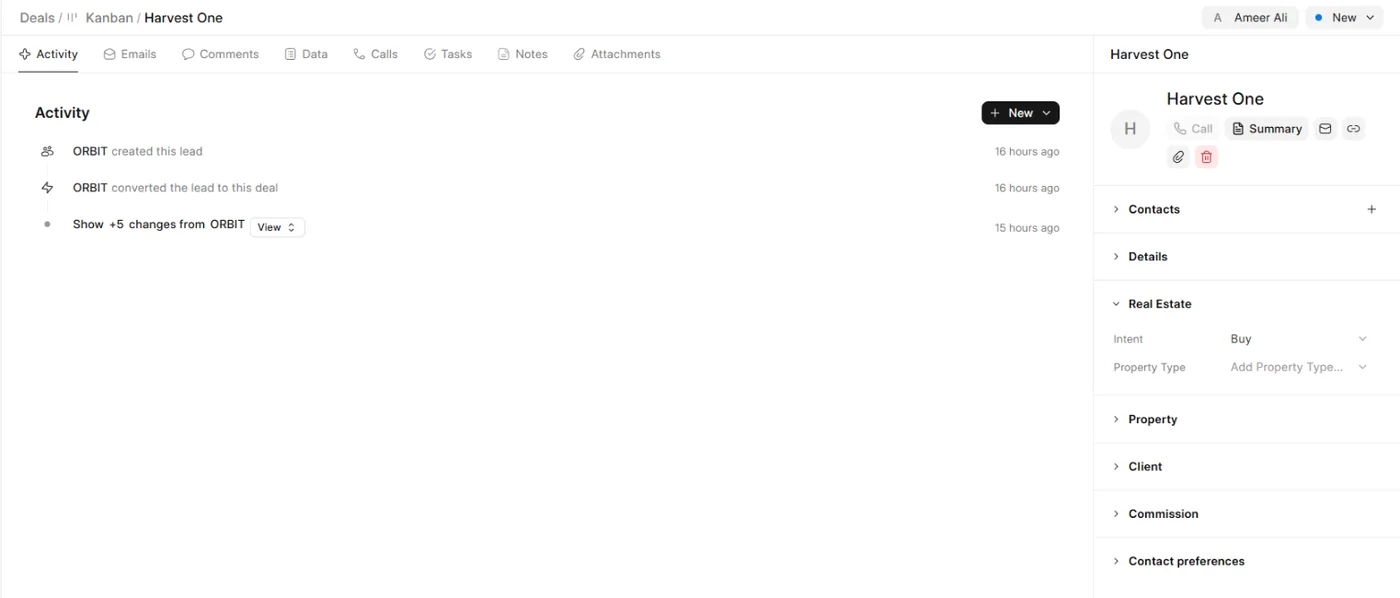
A client record. 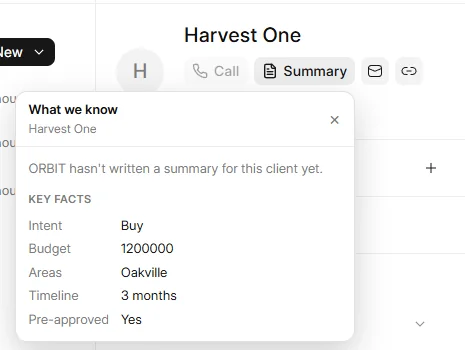
Summary: what ORBIT knows about the client. Turn a lead into a client
On the lead, use Convert to Deal, or ask ORBIT: “Convert Sarah Chen to a client.” The contact details and real estate fields carry over, and the lead is hidden from the default lists so each person shows once.
Say it to ORBIT
You can also just ask. For example:
- “Add Omar Haddad, 416 555 0182, as a seller lead for a semi in Mississauga.”
- “Which of my buyers are pre-approved?”
- “Convert Sarah Chen to a client.”
Tips
- Intent can be Buy, Sell, Buy & Sell, Rent, Lease or Invest.
- People who call, text or email you for the first time are added to your CRM for you.
- Your CRM is yours alone: you are its only user.
Questions
Can I bring in a list of contacts?
Paste the list into a conversation and ask ORBIT to add the people. ORBIT adds them in one go and skips anyone already in your CRM with the same email or phone.
I added someone twice.
When you add people yourself, the CRM does not check for duplicates. Ask ORBIT to find and merge them. See Merge duplicates and delete a client.
Why can't I open the CRM?
The message on screen says why: for example the CRM is still being prepared, your session expired (sign in again), or your workspace is paused until billing is completed.
Something not covered here? Ask ORBIT, or write to [email protected]. All guides