 ORBIT, your AI partner
Documents and contracts
Keep offers, agreements and other files on each client's record, and let ORBIT find and read them.
What you will do
Keep every client document in one place, attached to the right client, where ORBIT can use it.
Steps
Open the Document Vault
In the sidebar, open Real estate → Documents.
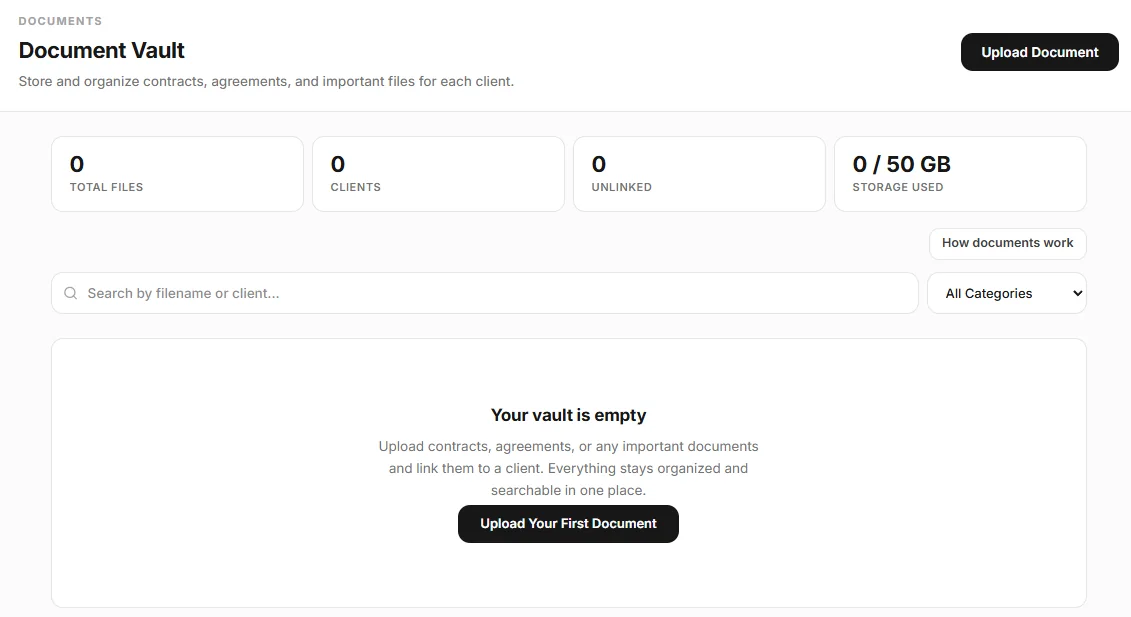
The Document Vault. Upload a file
Press Upload Document, drop or choose the file, pick the client it belongs to, then choose a category: Offer, Contract, Agreement, Waiver, Trade Record, Disclosure, Inspection or Other.
You can upload PDF, Word, Excel, images (PNG, JPG, GIF, WebP) and text files, up to 25 MB each.
Find, download or delete
Search by file name or client. Each file has Download and Delete. Storage Used shows how much of your storage you use.
Let ORBIT work with documents
ORBIT lists a client's documents, opens and reads them, stores a document from a link or from text it wrote, and deletes one when you ask. “Save the inspection report from this link to the Patel file.” “What closing date does the Patel offer give?”
Contracts and follow-up
A contract is a document filed on the client's record with a category such as Contract, Agreement or Offer. Tanero keeps it with the client, and ORBIT follows up when you ask: “Text the Patels on Monday to remind them to return the signed agreement.”
Tips
- Always pick the client when you upload, so ORBIT finds the file when you ask about that client.
Questions
Can Tanero e-sign contracts?
Not inside Tanero. Keep the signed copy on the client's record.
My upload is refused.
Each file can be up to 25 MB. If you see Storage limit reached, turn on Pay-As-You-Go for storage in Billing, or delete files you no longer need.
What happens to documents when I delete a client?
They are deleted with the client.
Something not covered here? Ask ORBIT, or write to [email protected]. All guides